Map MIDI CCs to Launch Control XL 3
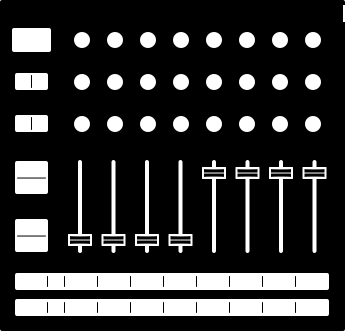
Build a custom mode for your Launch Control XL 3 and control any of the 445 devices documented on MIDI Guide. Click an encoder, fader, or button, then click a parameter to assign it.
Controller Layout
Parameter Browser
What is this?
The Novation Launch Control XL 3 supports Custom Modes, which are are layouts for your board that let you define your own MIDI mappings. This is the MIDI Guide Launch Control XL 3 custom mode builder. It helps you create a Custom Mode configuration file (.syx) that you can load onto your Launch Control using Novation's Components software. Select a device from MIDI Guide's database, click slots on the controller layout, then click parameters to assign them.
How to create a Custom Mode
Use the configurator above to pick the parameters you want to control with your Launch Control XL 3's rotary encoders, faders, and buttons. Here's how:
- Select a slot by clicking one of the encoders, faders, or buttons in the configurator
- In the Parameter Browser, select the device you want to control with your Launch Control XL 3
- Use the Default MIDI Channel dropdown to set a default MIDI channel for the slots you configure
- From the list of parameters that appear in the Parameter Browser, select the one you want to control with the slot you picked in Step 1. PRO TIP: Use the Search Parameters field to search for parameters.
- Select another slot by clicking a different encoder, fader, or button. Continue to taste.
- Press the "Download .syx" button.
How to load a Custom Mode onto your Launch Control XL 3
- Open Novation Components. Access Components either by using Novation's app, or with Chrome, Edge, or another Chromium-based browser.
- Connect your Launch Control XL 3 via USB
- Click "Upload Custom Mode"
- In the file picker dialogue that appears, locate the .syx file you just downloaded
The Custom Mode you created here will now appear in Novation Components. This is your chance to further tweak it; for instance, you might change the colours of the rotary encoder and button LEDs. You can also take this chance to add functionality to your Custom Mode that is out of scope for the MIDI Guide configurator, like assigning keypresses or MIDI notes to the Launch Control XL 3's buttons.
Now, to finish up:
- Click "Send to Launch Control XL 3" in the top-right of Novation Components
- Select a Custom Mode slot to save your Custom Mode
You're good to go! Your Custom Mode is now available on your Launch Control XL 3.
This configurator tool and the MIDI.guide website are not affiliated with Novation or Focusrite Audio Engineering. Novation is a registered trademark and Launch Control is a trademark of Focusrite Group PLC.